Creating an album & linking media
Albums are the primary way to group related media. A typical album: a fieldwork campaign, a year of monitoring photos, an exhibition, an event.
When to use an album vs. an archival collection
| Use this | When |
|---|---|
| Album | A loosely-grouped set, often by event or campaign. Light-weight; mostly cataloguing-oriented. |
| ArchivalCollection | A formally archived collection that has a creator, requires preservation context, and may be subdivided into CollectionParts. |
Albums and archival collections are not mutually exclusive — a media can sit in an album and be part of an archival collection at the same time.
Step 1 — Create the album
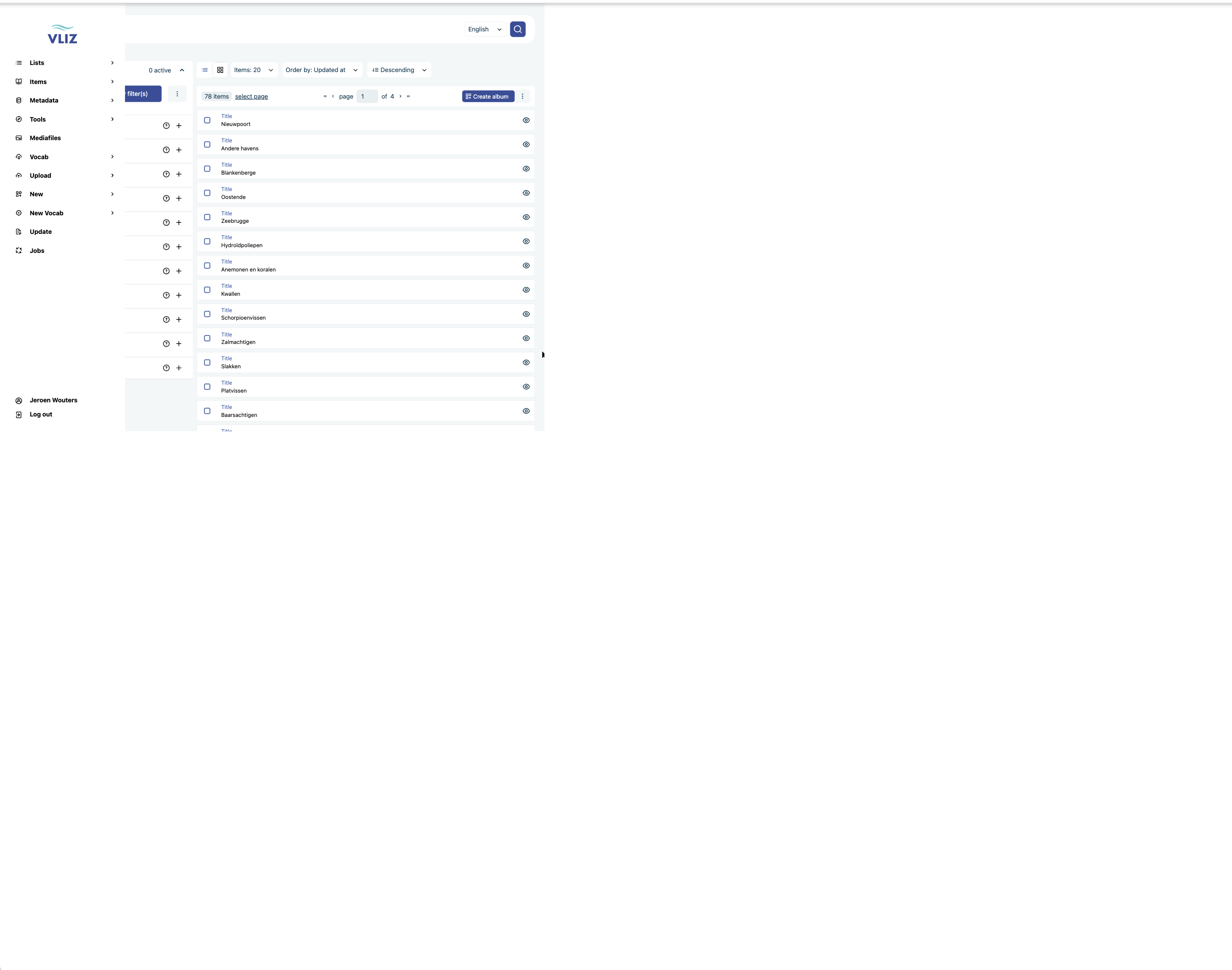
- Sidebar → Lists → Albums, then Create album at the top right of the list.
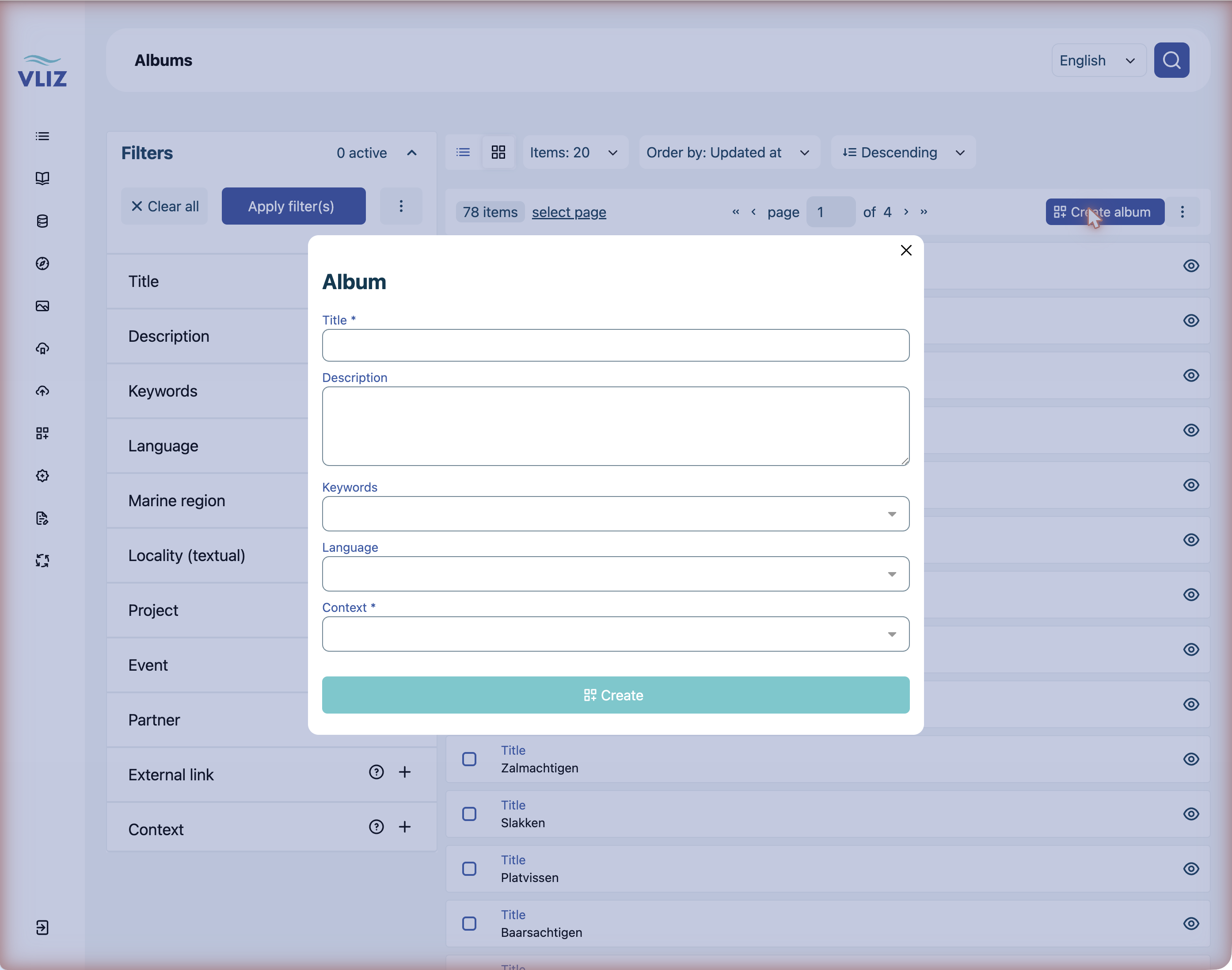
- Fill in the required fields (marked
*):- Title (e.g. Koksijde 2014).
- Context (e.g. General VLIZ).
- Optional but useful from the start:
- Description — one-line scope of the album.
- Keywords — the broad themes this album covers.
- Language — if relevant.
- Click Create.
Fewer fields than on the detail page
The creation form only asks for the basics. Marine region, project, event, partner and the other relations are set afterwards on the album's detail page via Edit metadata.
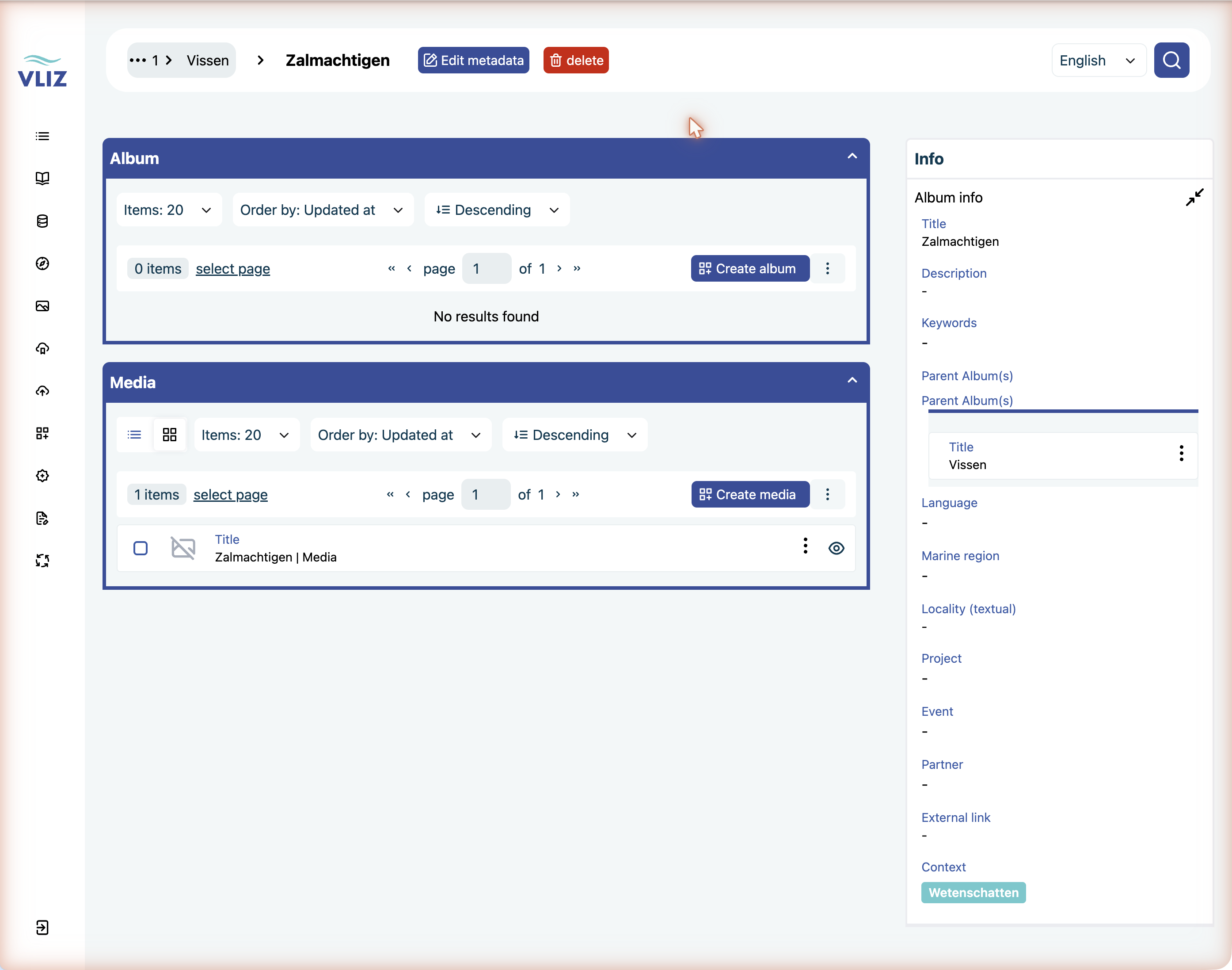
You're now on the new album's detail page. It has an Album panel (for sub-albums) and a Media panel, both still empty, plus the Info panel with the metadata you just entered:
Step 2 — Link media to the album
There are two equivalent ways:
A. From the album
- On the album's detail page, find the Media panel (the virtual
has_mediareverse). - Click Create media at the top right of that panel — the new record gets this album set automatically.
B. From the media
- Open a media's detail page.
- Click Edit metadata and find the Album (
has_album) field in the Info panel. - Set it to your album.
- save.
The album immediately shows the media in its panel because Album.has_media is virtual — set on the media side, visible from the album side.
Bulk move
There is no bulk metadata edit in the UI, so you cannot move a selection of media into an album in one click. For larger moves, set the album column in a CSV and re-import via Sidebar → Update — see CSV import.
Step 3 — Attach an album to an archival collection (optional)
There is no direct relation from Album → ArchivalCollection in the data model. The link runs through the media records:
- For each media in the album that should be in the archival collection: open it, set its Archival collection (
has_archival_collection) and optionally Collection part (has_collection_part). - The archival collection's Media panel will then show those records.
If every media in an album logically belongs to the same archival collection, do it via CSV rather than one by one: export the album's media, fill in the archival-collection column, and re-import through Sidebar → Update.
Practical structure example
Say VLIZ runs an annual coastal-monitoring campaign at Koksijde. A clean structure:
ArchivalCollection: "Coastal monitoring (Belgian coast)"
└── CollectionPart: "Koksijde — annual campaign"
    └── Media (set has_archival_collection + has_collection_part)
└── Album: "Koksijde 2014" (containing the year's media)
└── Album: "Koksijde 2015"
└── ...
Each year's album collects that year's media. The CollectionPart aggregates all years for archival/preservation purposes. A single media is linked to both — the album for everyday cataloguing, the archival collection for long-term context.
Editing an album later
Same as any other entity — see Editing metadata. You can rename it, change keywords, add or remove media, etc., without affecting the underlying media records.
Deleting an album
Deleting an album does not delete the media in it. The media records stay; their has_album link is cleared.
Confirm before deleting
There's no undo — the album record itself is gone. The media stay, but their has_album link is cleared, so you'd have to recreate the album and re-link each media (or re-import them from a CSV).
Naming convention tips
- Year + place is the most common pattern (
Koksijde 2014,North Sea — sediment cores 2023). - Avoid putting the partner name in the album title unless it's part of the brand of the campaign — the Partner relation already captures that.
- Keep titles short. The album shows up as a chip and a column on many list views; long titles wrap awkwardly.