Interface overview
After logging in you land on the Albums list. The layout follows the standard Elody pattern: a narrow icon rail on the left, a filter panel, and the result list.
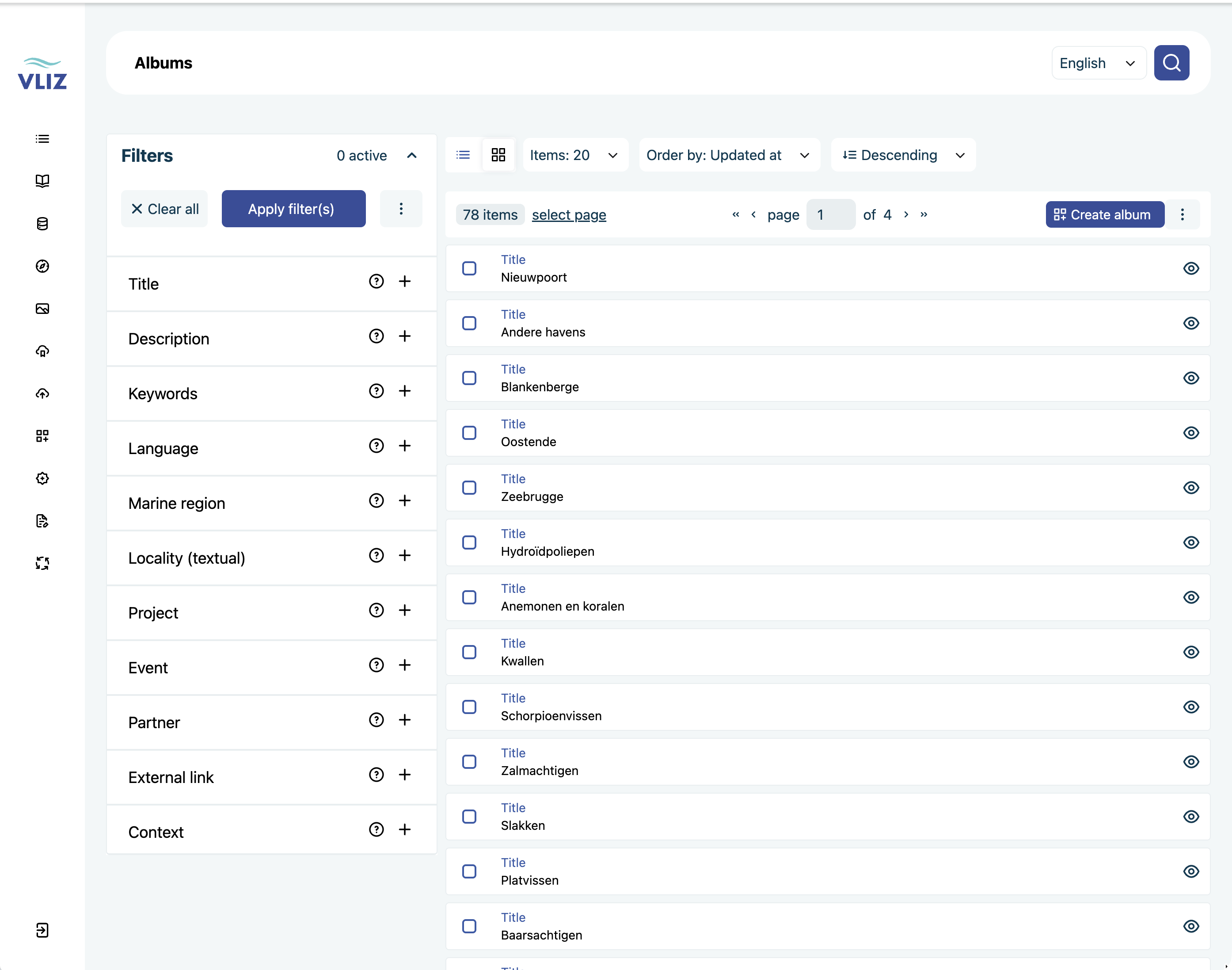
Top bar
- Page title — the entity type you're currently looking at (Albums, Medias, …).
- Language switcher — the interface language.
- Search (magnifier, top right) — opens the global search dialog.
Your profile and the Log out action are at the bottom left of the sidebar, not in the top bar.
Left sidebar
The sidebar is an icon rail. Click any icon and it expands to show the labels; click a group again (or click outside it) to collapse. Hovering only shows a tooltip — you have to click to open a group.
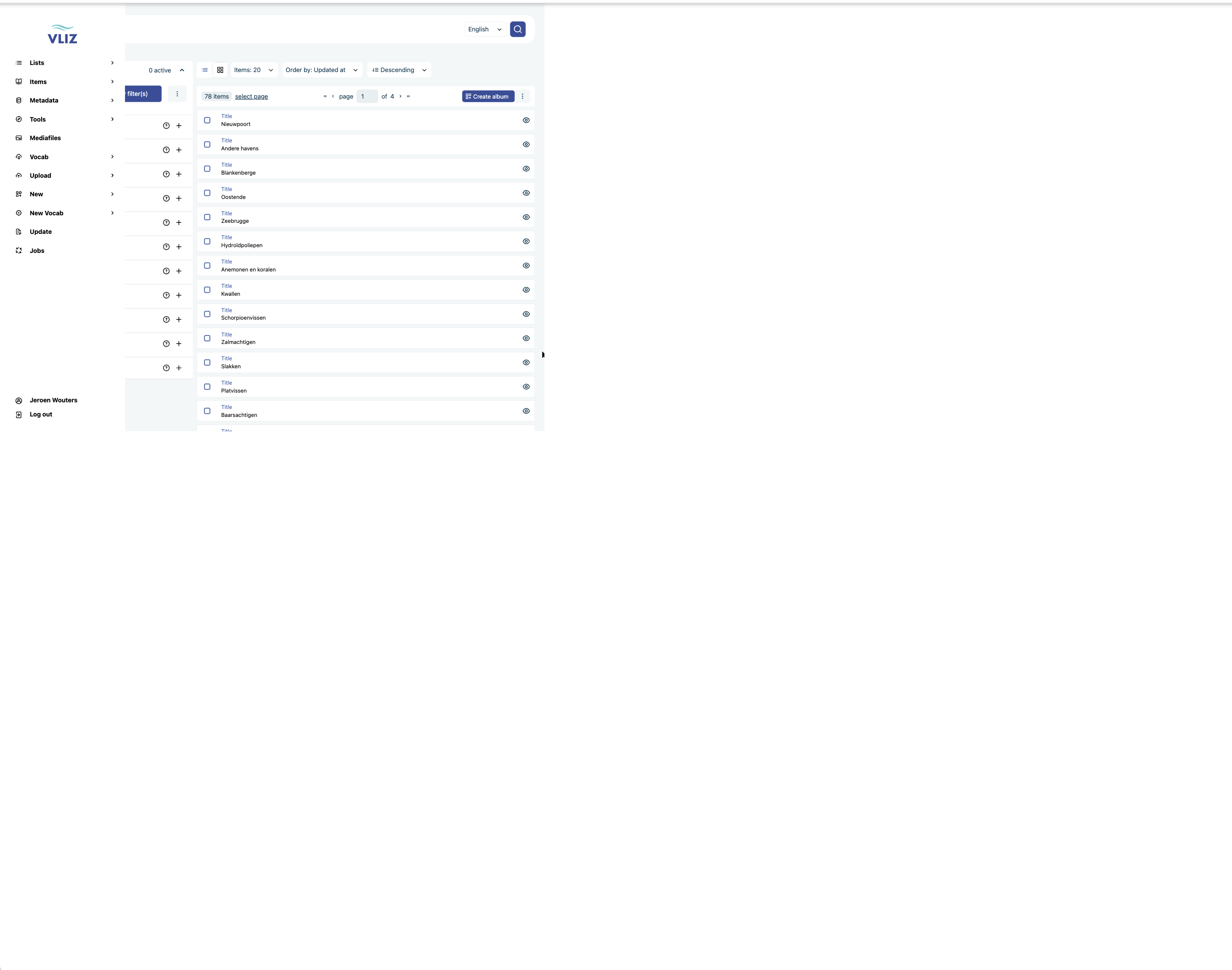
The top-level entries are:
| Entry | Contains |
|---|---|
| Lists | Albums, Archival Collections, Collection Parts, Publications |
| Items | Media, Documents, Maps, Contexts |
| Metadata | Metadata-level entities |
| Tools | Tooling entries |
| Mediafiles | The individual file binaries (no submenu — goes straight to the list) |
| Vocab | Vocabularies: keywords, languages, marine regions, partners, projects, events, … (partly sourced from the VLIZ vocab server) |
| Upload | Upload entities with mediafiles / Upload entities without mediafiles — see CSV import |
| New | Create a new entity |
| New Vocab | Create a new vocabulary term |
| Update | Bulk update flows |
| Jobs | Status of imports and other background jobs |
Note that Media, Maps and Documents are not top-level entries — they live under Items.
Detail pages
Each entity has a detail view rendered from the GraphQL form definition. The structure is:
EntitySingle  →  EntityColumn  →  EntityElement
                                       └── EntityElementWindow
                                              └── WindowPanel  (metadata, relations, media, history…)
In practice, a media detail page shows the Mediafiles panel with a IIIF viewer on the left and an Info panel with the metadata on the right:
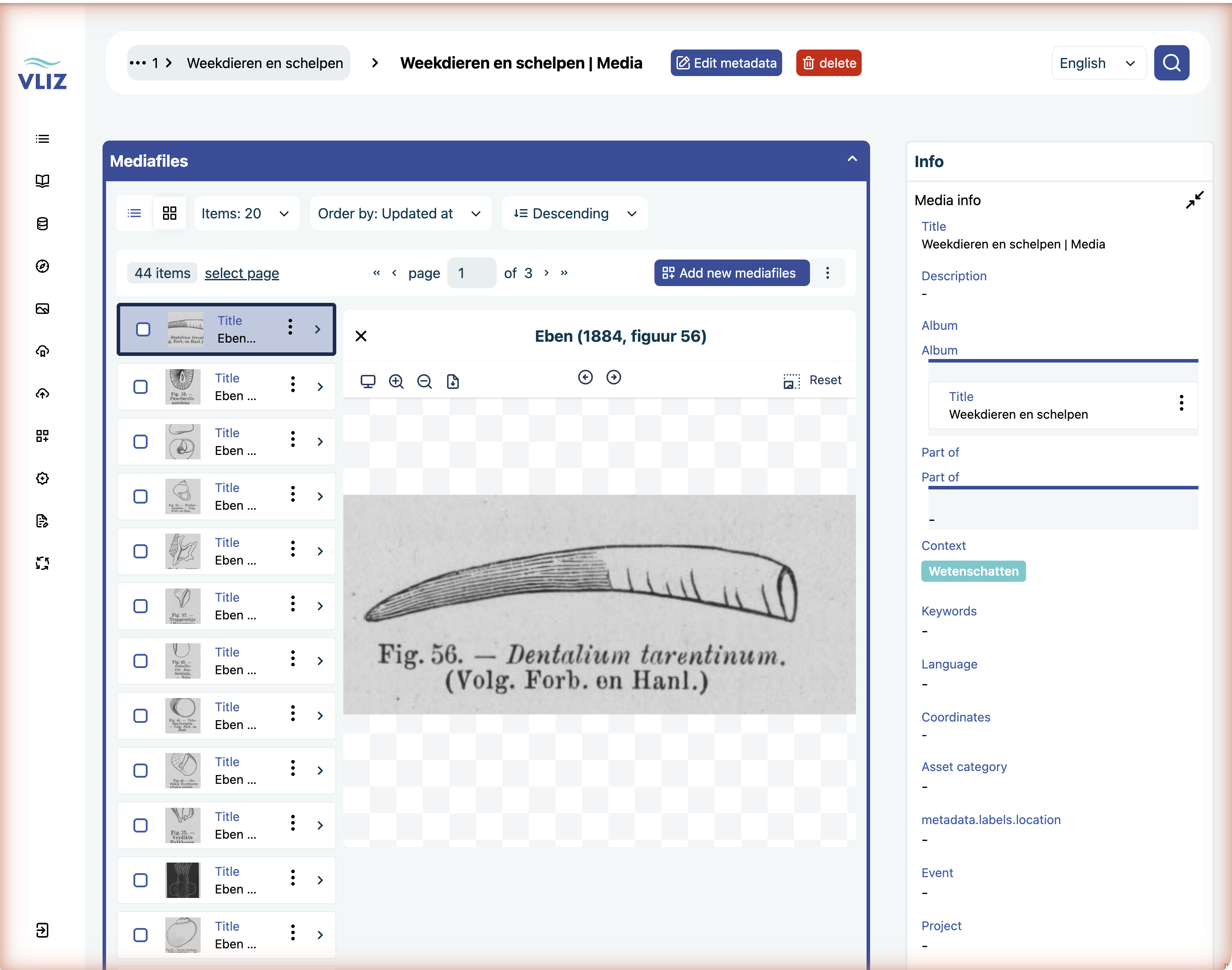
The form panels you see (which fields are editable, dropdowns vs text, required-ness) are driven by the JSON schema in clients/vliz-dams/client-collection-module/api/apps/vliz/validation/ — i.e. you can change which fields appear without redeploying the frontend.
Search and filters
Filters are configured per entity type. For most VLIZ entities the available filters mirror the relations on that entity (context, keywords, marine region, etc.). See Filtering for how the filter panel works.
→ See Data model → Entity reference for which fields each entity exposes.